MSA NES EMULATOR
A downloadable game
An NES/Famicom emulator written in C#, designed for performance, and modern user experience.
- ROM Compatibility: Fully supports both iNES and NES 2.0 ROM formats, ensuring smooth playback of nearly all commercial and homebrew titles.
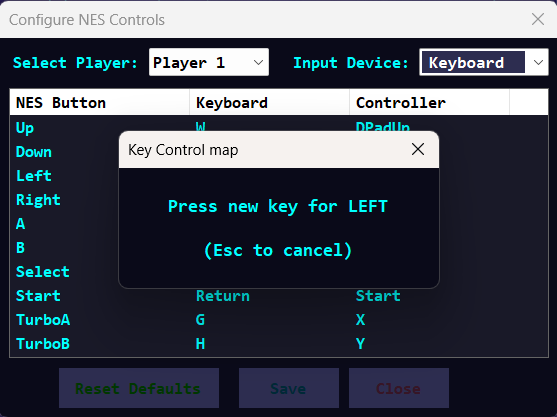
- Turbo Key & Customizable Controls: Allows mapping any button to rapid-fire turbo mode, with per-button speed adjustment and fully reconfigurable controller bindings.
- Save & Load States: Instantly save or resume gameplay at any point with quick slot functionality for multiple save files per game.
- Shader Boost Effects: Apply real-time shader enhancements including CRT curvature, scanlines, LCD blur, and pixel glow for authentic visual styles.
- Adaptive Widescreen Mode: Expand the original 4:3 view dynamically using pixel stretching while maintaining correct aspect proportions.
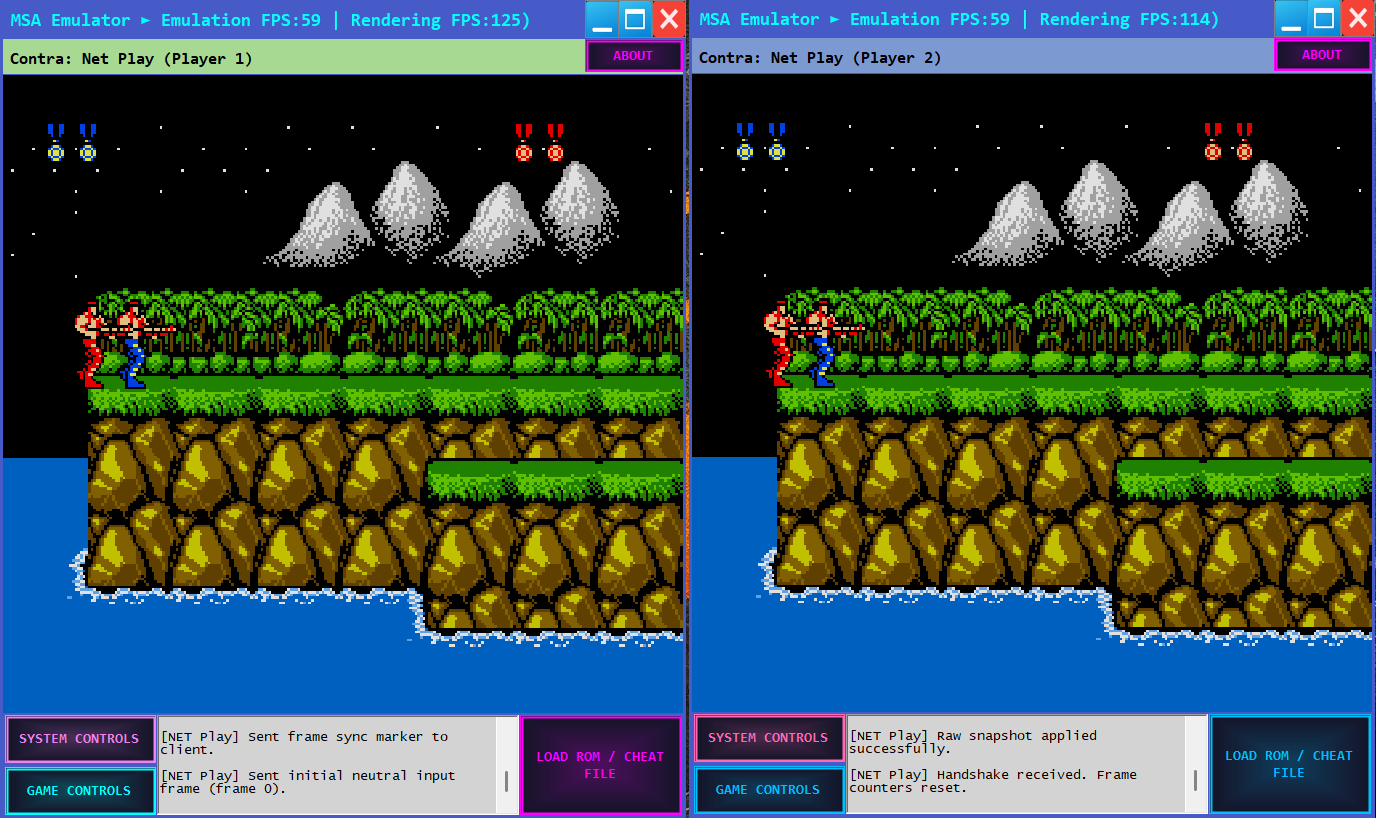
- Multiplayer / Netplay: Play cooperatively or competitively online through low-latency peer-to-peer netplay sessions with simple host/join setup.
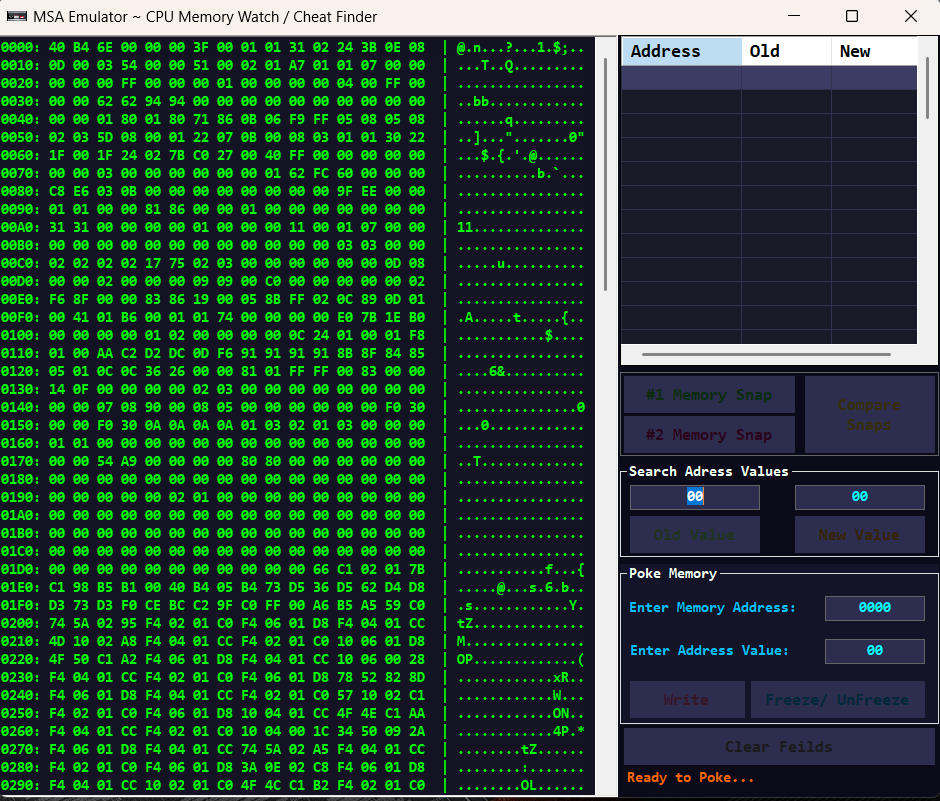
- Memory Watch & Cheat Finder: Inspect and edit live memory, create cheat codes, and monitor values to aid in debugging or modding games.
- Modern Rendering Backends: Offers hardware-accelerated rendering via OpenGL and Direct2D for smoother frame delivery and improved visual fidelity.
- Performance-Oriented Core: Highly optimized emulation loop with minimal input lag and cycle-accurate CPU/APU timing for faithful reproduction.
- Low-Latency Input: Designed with a responsive event loop to minimize controller input delay during gameplay.
Download
Install instructions
🚀 Quick Start
1. Unzip the emulator folder anywhere (e.g. `C:\Games\MSAEmulator`).
2. Put your `.nes` ROMs in the Roms folder (the emulator creates it automatically if missing).
3. Double-click MSAEmulator.exe to run.
4. To start a game: click Load ROM and pick a `.nes` file — or simply drag & drop a `.nes` (or a `.zip` containing `.nes`) onto the emulator window.
---
🧩 Loading Cheats (cheat files)
When you load a ROM the emulator will ask whether you want to load a cheat file (optional). Cheat files usually have the extension `.cht`.
- How to load: Click Load ROM → choose your `.nes` → when prompted, choose a `.cht` file if you have one.
- What it does: Cheats can enable extra lives, infinite health, level select, and other in-game shortcuts. If you don’t want cheats, just skip the file.
---
🕹️ Controls (keyboard & controller)
The emulator supports either keyboard or a gamepad. It detects controllers automatically when connected.
- Use the Configure Controls button in the emulator to remap keys or buttons.
---
💾 Save & Load Game States (quick restore)
- Save state: Press F1 — saves a full snapshot of your current game.
- Load state: Press F2 — restores the saved snapshot.
Saved states are stored in the `GameSaveStates` folder (inside the emulator folder). Use these often — they’re the fastest way to retry difficult parts.
---
⏪ Rewind (instant 'undo')
- How to use: Hold Backspace to rewind gameplay. Release Backspace to resume from the point you stopped rewinding.
- The emulator keeps many seconds of gameplay in memory so you can rewind several moves back.
- Rewind automatically preserves audio and will restore sound after you stop rewinding.
---
⚡ Turbo Button Speed (fine-tune rapid-fire)
- F7 — Make Turbo faster (more rapid presses)
- F8 — Make Turbo slower (less rapid)
- F9 — Reset Turbo speed to default
Use Turbo when a game requires rapid repeated presses (shooting, rapid jumping, etc.).
---
🎨 Visuals: Shaders & Filters
- F3 — Cycle visual effects (shaders): CRT / Scanlines, Color pop + Bloom, Anime4K, GlassGlow, Oil Paint, HDR Bloom, Matte LCD, Neural Glow, Paper Ink and more.
- F6 — Cycle texture filters (Nearest / Bilinear / Trilinear)
- F4 — Toggle widescreen stretch ON/OFF
- + / - (when widescreen is ON) — Make the widescreen stretch wider or narrower
- F5 — Toggle integer pixel scaling (keeps pixels sharp and crisp)
Try different shaders to see what looks best on your display — some make games look smooth on high-resolution screens, others keep the retro CRT look.
---
🔊 Sound
- Sound plays automatically while games run.
- If sound stops after rewind or pause, it will reinitialize automatically when you resume.
- If you lose audio completely, restart the emulator.
---
🌐 NetPlay — Play Online with Friends
- One player hosts a NetPlay session (start emulator → load ROM → choose NetPlay / Host).
- The other player connects to the host using the host’s address.
- The emulator synchronizes inputs so both players play the same game together.
- If connection issues occur, the emulator will show messages and try to keep things safe.
---
🔎 Memory Watch / Hex Editor (F10)
- F10 opens the Memory Watch / Hex Editor window.
- This tool lets you view and edit the game’s memory values (raw game data) and is useful for advanced cheat testing and debugging.
- It opens only while a game is running (and not in fullscreen).
- The window is labeled “Hex Editor” when it opens.
Warning: Changing memory values can crash or corrupt the running game. Save a state (F1) before making edits so you can restore if something goes wrong.
---
🧭 Drag, ZIP support & ROM detection
- You can drag & drop a `.nes` file onto the emulator window to load it immediately.
- If you drop a `.zip` that contains `.nes` files, the emulator will scan the archive and let you pick which `.nes` to extract and run.
---
⏩ Speed Controls (fast-forward or slow-motion)
- Page Up — Increase emulation speed
- Page Down — Decrease emulation speed
- Home — Reset speed to normal (100%)
- Tab (hold) — Fast-forward while held (temporary speed boost)
These are handy for skipping long intros or making grinding go faster.
---
⏸ Pause & Reset
- F11 — Pause / Resume the emulator
- R — Soft reset the current game (like pressing the console reset button)
---
🔔 Other useful keys
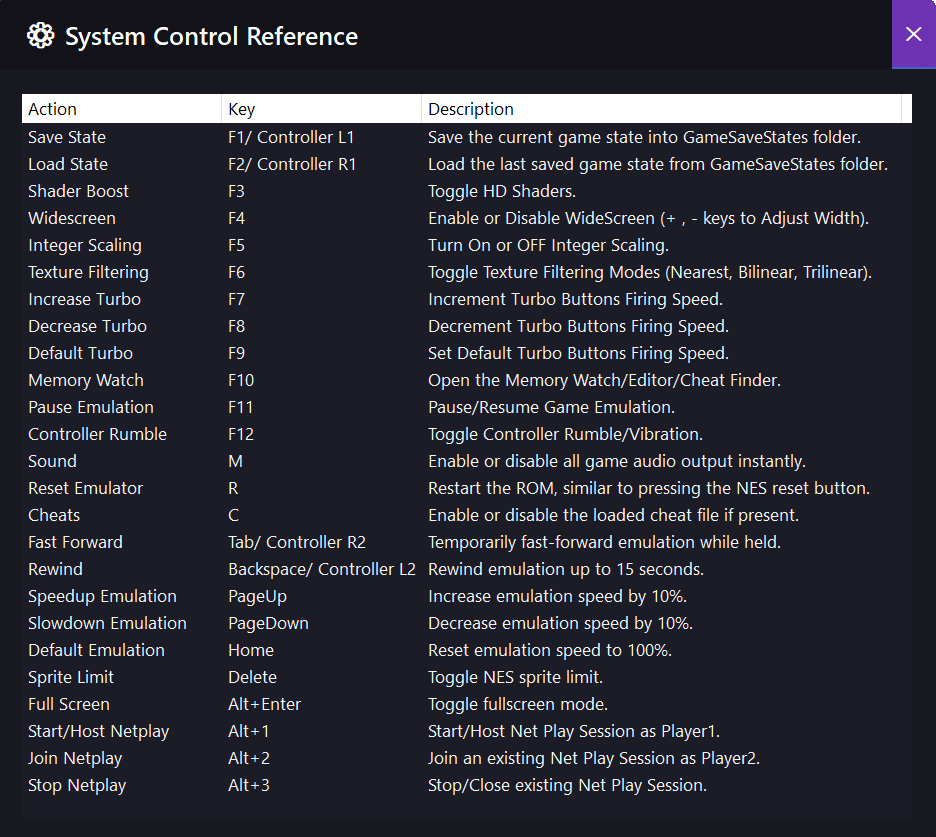
- F1 — Save State
- F2 — Load State
- F3 — Cycle Shaders
- F4 — Toggle Widescreen
- F5 — Integer Scaling
- F6 — Texture Filter
- F7 — Turbo Faster
- F8 — Turbo Slower
- F9 — Reset Turbo Speed
- F10 — Open Memory Watch / Hex Editor
- F11 — Pause / Resume
- F12 — Toggle Controller Vibration
- Backspace (hold) — Rewind
- Drag & Drop — Load `.nes` or `.zip`
---
🪄 Tips & Best Practices
- Always save before editing memory (F1) so you can revert if needed.
- If a ROM won’t load, make sure it’s a valid `.nes` file — some special mappers aren't supported.
- Plug your controller in before starting the emulator for best detection.
- If shaders cause visual glitches, switch to “None” (F3 until shader is off).
---
❓ Troubleshooting
- No sound → Check your audio device, or restart the emulator.
- Game won't start → Confirm the file is a `.nes` ROM, or try another ROM.
- Controller not detected → Replug controller and restart emulator.
- Memory edits crash the game → Load your saved state (F2) to restore.
Leave a comment
Log in with itch.io to leave a comment.